
Custom TUI Status Line
The Antigravity Terminal User Interface (TUI) features an interactive status line docked at the bottom of your screen.
As you chat, the CLI pipes a real-time JSON payload to your custom shell script’s stdin and displays whatever your script outputs to stdout. This lets you track token consumption, active model names, and context window health at a glance.
The Status Script (statusline.sh)
Section titled “The Status Script (statusline.sh)”Save this script as ~/.gemini/antigravity-cli/statusline.sh:
#!/usr/bin/env bashINPUT=$(cat)
# Extract context window metricsRAW_PCT=$(echo "$INPUT" | jq -r '.context_window.used_percentage // 0')TOTAL_IN=$(echo "$INPUT" | jq -r '.context_window.total_input_tokens // 0')WINDOW_SIZE=$(echo "$INPUT" | jq -r '.context_window.context_window_size // 0')
# Extract clean model display name (handles object or string)MODEL=$(echo "$INPUT" | jq -r 'if (.model | type) == "object" then (.model.display_name // .model.id // "model") else (.model // "model") end')
# Format percentage to 1 decimal place with neutral localeFORMATTED_PCT=$(LC_ALL=C awk -v pct="$RAW_PCT" 'BEGIN {printf "%.1f", pct}')
format_num() {    local n=$1    if [ -z "$n" ] || [ "$n" = "null" ]; then        echo "0"    elif [ "$n" -ge 1000000 ] 2>/dev/null; then        LC_ALL=C awk "BEGIN {printf \"%.1fM\", $n/1000000}"    elif [ "$n" -ge 1000 ] 2>/dev/null; then        LC_ALL=C awk "BEGIN {printf \"%.1fk\", $n/1000}"    else        echo "$n"    fi}
FORMATTED_USED=$(format_num "$TOTAL_IN")FORMATTED_MAX=$(format_num "$WINDOW_SIZE")
# ANSI Color ThresholdsRESET="\033[0m"BOLD="\033[1m"CYAN="\033[36m"GREEN="\033[32m"YELLOW="\033[33m"RED="\033[31m"
COLOR="$GREEN"INT_PCT=${RAW_PCT%.*}if [ -n "$INT_PCT" ] && [ "$INT_PCT" -eq "$INT_PCT" ] 2>/dev/null; then    if [ "$INT_PCT" -ge 80 ]; then        COLOR="$RED"    elif [ "$INT_PCT" -ge 50 ]; then        COLOR="$YELLOW"    fifi
# Render clean status lineprintf "${CYAN}${BOLD}[%s]${RESET} Context: ${COLOR}%s%%${RESET} (%s / %s tokens)\n" \    "$MODEL" "$FORMATTED_PCT" "$FORMATTED_USED" "$FORMATTED_MAX"
Make it executable:
chmod +x ~/.gemini/antigravity-cli/statusline.shConfiguration in settings.json
Section titled “Configuration in settings.json”Add the command to ~/.gemini/antigravity-cli/settings.json:
{ "statusLine": { "type": "command", "command": "/home/samob/.gemini/antigravity-cli/statusline.sh", "enabled": true }}Activation & TUI Preview
Section titled “Activation & TUI Preview”In your active session, activate it immediately by running:
/statusline ~/.gemini/antigravity-cli/statusline.shLive Output:
Section titled “Live Output:”[Gemini 3.8 Flash (Medium)] Context: 4.0% (42.0k / 1.0M tokens)- Cyan: Active model name.
- Green: Token usage below 50% (healthy & fast).
- Yellow: Token usage between 50%–80% (getting warm).
- Red: Token usage above 80% (warning: danger of context rot!).
Live TUI Session in Action
Section titled “Live TUI Session in Action”Here is what your terminal looks like during active conversation with the status line running live:
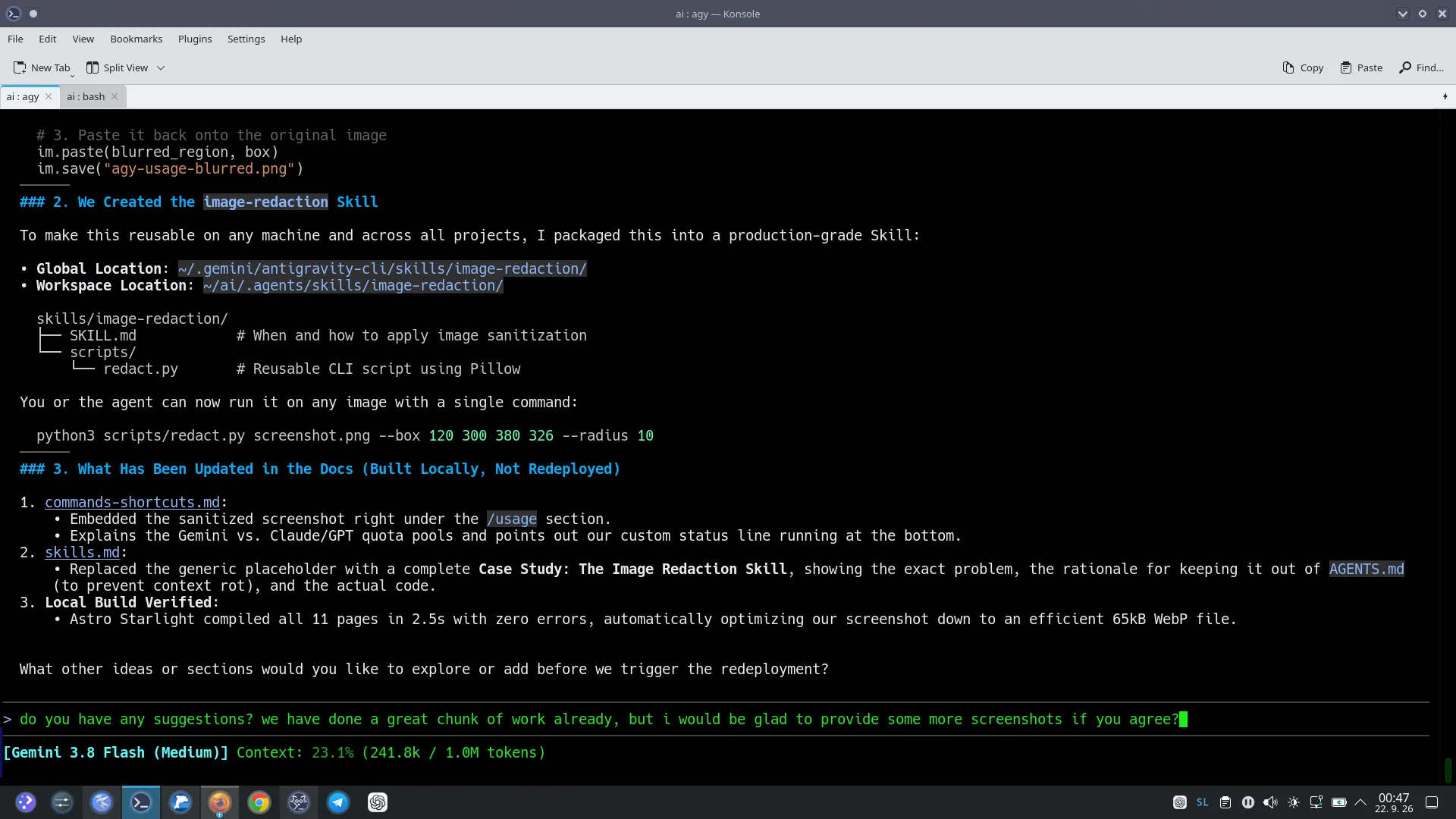
Notice how the green prompt input box is paired with real-time feedback right below it (Context: 23.1% (241.8k / 1.0M tokens)). You always know your token consumption and active model without interrupting your typing!