
Commands, Shortcuts & Shell Escape
Antigravity CLI provides comprehensive interactive commands and keyboard shortcuts for high-speed terminal development.
TUI Slash Commands
Section titled “TUI Slash Commands”Enter these directly into the chat prompt:
| Command | Action |
|---|---|
! <command> |
Direct Shell Escape: Runs any bash command directly on host without leaving TUI (e.g. ! git status, ! df -h). |
/context |
Opens interactive visual inspector of token distribution. |
/usage (or /quota) |
Displays model limits, current quota status, and consumption. |
/statusline |
Toggle or change the status bar configuration. |
/mcp |
View, manage, and inspect loaded MCP server connections. |
/agents |
Inspect active and background subagents. |
/plan |
Requests the agent to produce a structured plan before executing tasks. |
/goal |
Runs long-running autonomous goal-driven workflows. |
/fork (or /branch) |
Clones current conversation state into an isolated branch. |
/clear |
Clears chat display without losing session context. |
/exit |
Exits the CLI session cleanly (also Ctrl+D Ctrl+D). |
Viewing Quota & Resource Usage (/usage)
Section titled “Viewing Quota & Resource Usage (/usage)”Running /usage (or /quota) in the chat prompt opens the interactive resource dashboard:
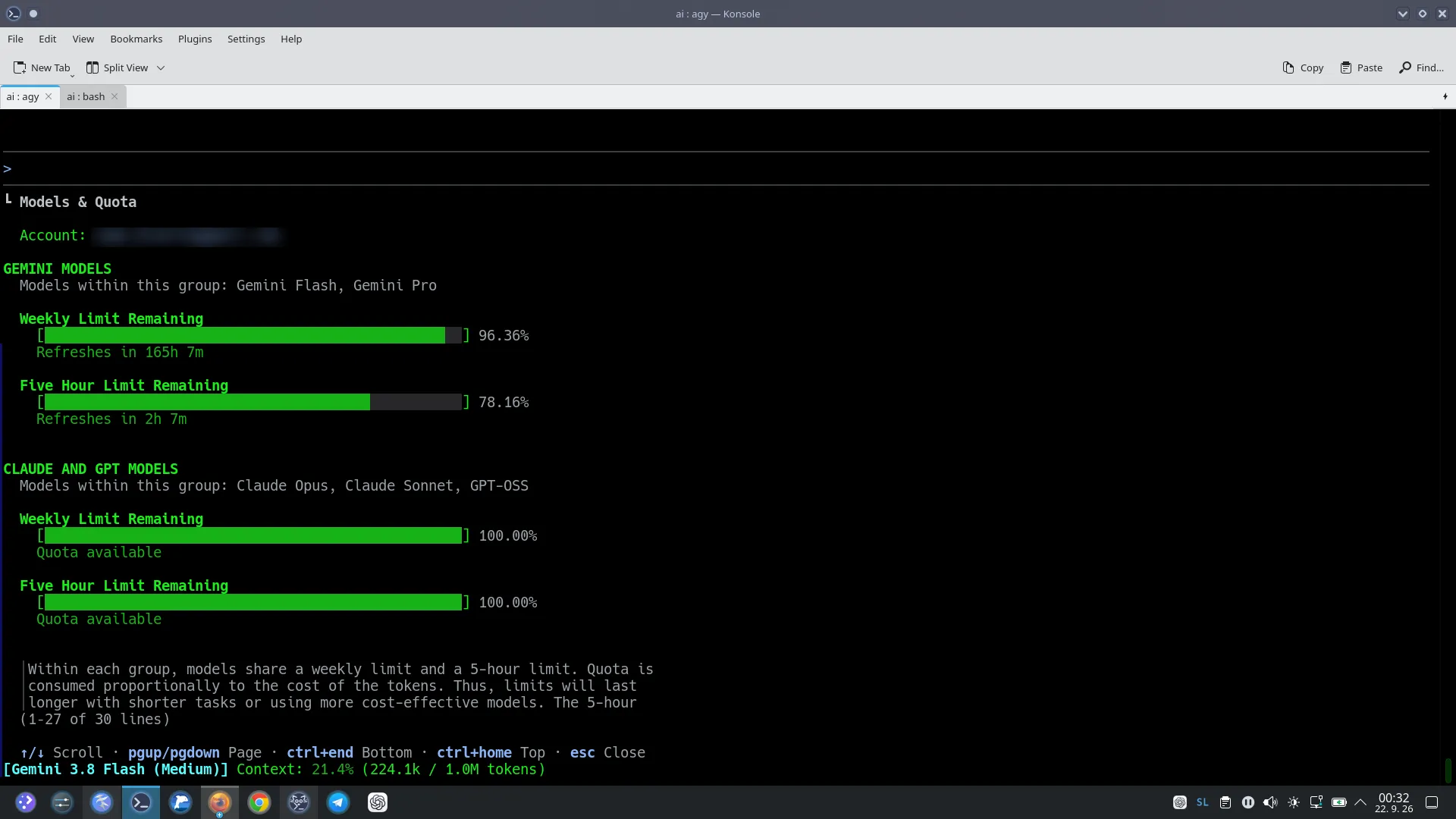
This panel provides real-time visibility into your account resources:
- Account Status: Displays your authenticated Google subscription (safely redacted above).
- Gemini Models Quota: Tracks weekly and 5-hour rolling quotas for Gemini Flash and Pro models.
- Claude & GPT Models Quota: Confirms that Claude Sonnet, Claude Opus, and GPT-OSS are available under your plan, with their independent quota pools.
- Status Bar Verification: You can see our custom status line running at the very bottom:
[Gemini 3.8 Flash (Medium)] Context: 21.4% (224.1k / 1.0M tokens).
Inspecting Token Distribution (/context)
Section titled “Inspecting Token Distribution (/context)”Running /context opens the interactive token visualizer overlay:
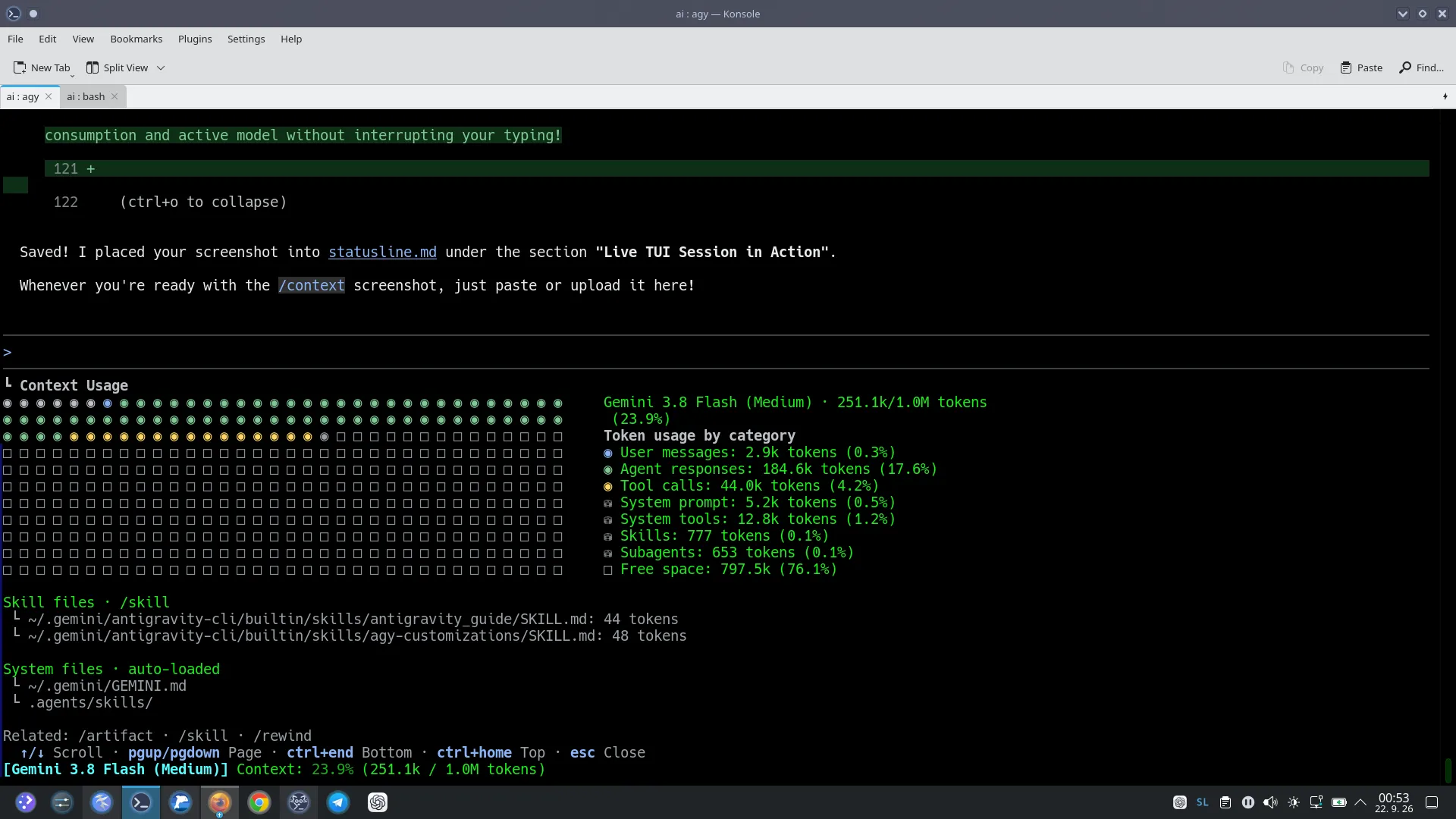
This dashboard provides an instant, graphical breakdown of your active context window:
- Visual Dot Matrix: Every dot represents a slice of your token window. Colored indicators allow you to audit memory consumption at a glance.
- Token Breakdown by Category:
- User messages (
2.9k tokens/0.3%): What you have submitted in the chat session. - Agent responses (
184.6k tokens/17.6%): The model’s conversation output and thought process. - Tool calls (
44.0k tokens/4.2%): Command outputs, file view contents, and MCP server responses. - System prompt & system tools (
5.2k+12.8k tokens): Antigravity’s core system prompt and built-in tool definitions. - Skills & Subagents (
777 tokens/0.1%): Notice how minimal this is! Thanks to progressive disclosure, registered skills only load a small frontmatter summary into context (e.g.antigravity_guide/SKILL.mdtakes only 44 tokens). Full skill playbooks are loaded on-demand only when invoked. - Free Space (
797.5k tokens/76.1%): Remaining token capacity in the 1-million-token window.
- User messages (
- Auto-Loaded Files: Displays which rules and configuration files are currently active (
~/.gemini/GEMINI.mdand.agents/skills/). - Keyboard Navigation: Use
↑/↓orPgUp/PgDnto scroll,Ctrl+Home/Ctrl+Endto jump, andEscto close the overlay.
Automatic Context Compaction (Autocompact) in Action
Section titled “Automatic Context Compaction (Autocompact) in Action”As you interact with Antigravity during long development sessions—reading large code files, executing build scripts, and running multi-step commands—the active working context steadily grows.
If left unmanaged, overflowing context windows lead to context rot (latency increases, token burn escalates, and LLM attention degrades). To solve this automatically, Antigravity features built-in automatic context compaction (autocompact).
Visual Comparison: Before & After Autocompact
Section titled “Visual Comparison: Before & After Autocompact”| State | Context Used | Free Capacity | Visual Dashboard |
|---|---|---|---|
| Before Autocompact (Heavy session load) | 23.9% (250.2k / 1.0M tokens) | 76.1% (797.5k tokens) | Shown in /context breakdown above |
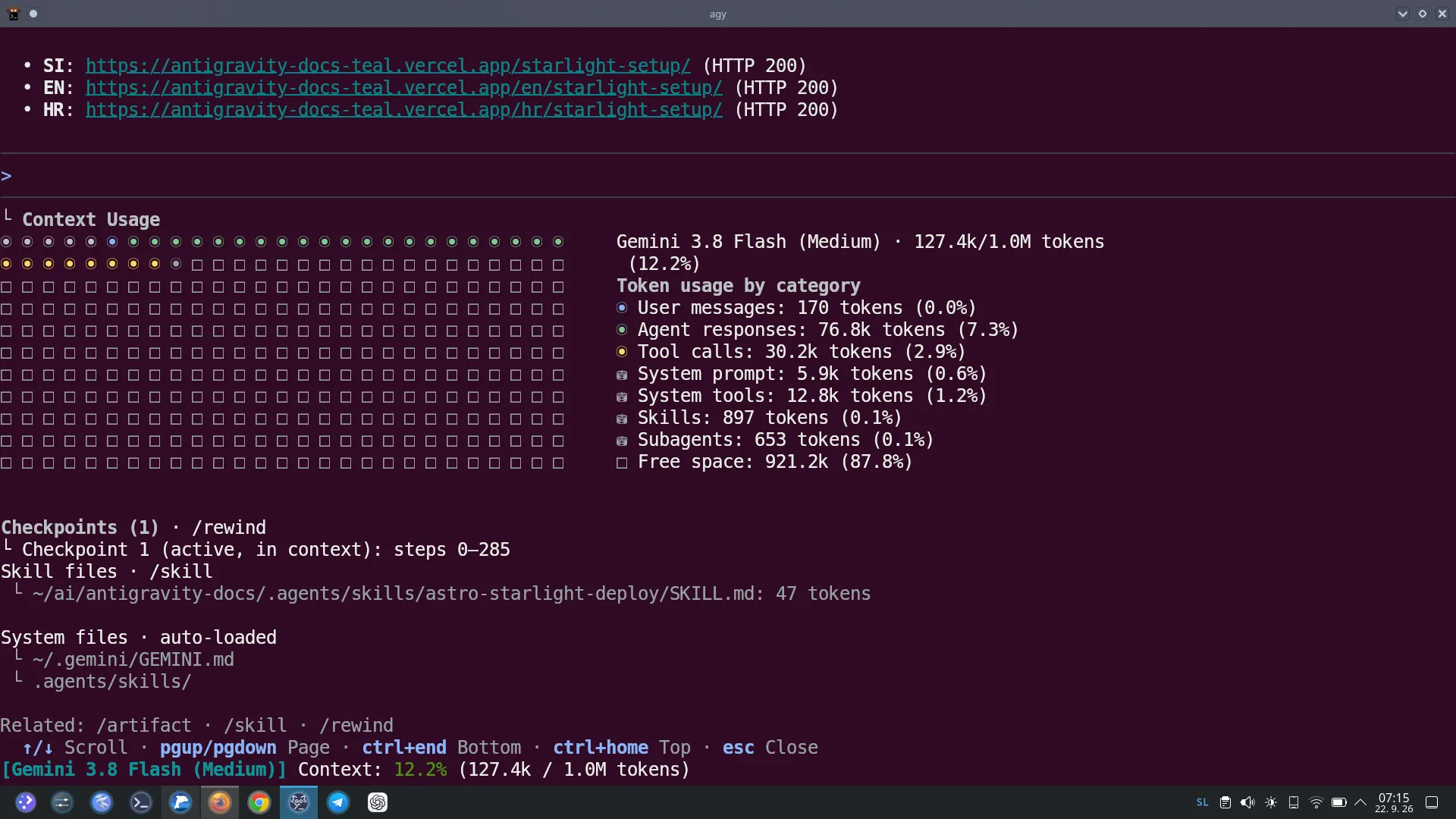
| After Autocompact (Pruned & summarized) | 12.2% (127.4k / 1.0M tokens) | 87.8% (921.2k tokens) | Shown in screenshot below |
What Happens Under the Hood?
Section titled “What Happens Under the Hood?”- Intelligent Summarization (
<CONTEXT_SUMMARY>): Instead of bluntly dropping conversation turns or forgetting initial project constraints, Antigravity synthesizes previous turns into an accurate, structured summary including completed tasks, user preferences, and file changes. - Pruning Verbose Tool Bloat: Verbose terminal outputs (e.g. hundreds of lines of Vite build logs or large file dumps) are pruned from active model memory while retaining key conclusions.
- Zero Data Loss via Checkpoints: The full verbatim history is safely persisted on disk in
<appDataDir>/brain/<id>/.system_generated/logs/transcript.jsonl. As shown in the dashboard above (Checkpoint 1 (active, in context): steps 0–285), checkpoints and the/rewindcommand remain fully intact. - Instant Token Relief: As seen in the comparison, token consumption dropped from 23.9% down to 12.2%, reclaiming over 87.8% free space (921.2k tokens) so the agent remains razor-sharp without losing session memory!
Essential Keyboard Shortcuts
Section titled “Essential Keyboard Shortcuts”Note on Shortcut Notation:
In terminal documentation, letters in shortcuts are conventionally capitalized (e.g.Ctrl+C,Ctrl+L) for readability. You do not need to pressShift. Simply holdCtrland press the lowercase letter. IfShiftis needed, it is written explicitly (e.g.Shift+Enter).
Stopping & Cancelling
Section titled “Stopping & Cancelling”Ctrl+C(orEsc): Stop running task — immediately interrupts model generation or active tool execution.Esc: Closes open modal dialogs, menus, or overlays.
Clearing & Editing Prompts
Section titled “Clearing & Editing Prompts”Esc Esc(double-tap Escape): Wipes the entire prompt buffer — the fastest way to clear an accidental large block of pasted text.Ctrl+U: Deletes from the cursor backwards to the beginning of the line.Ctrl+C(when idle): Clears the current input line without exiting.Shift+Enter: Inserts a newline into the prompt without submitting.
Tool Inspection & Subagent Navigation
Section titled “Tool Inspection & Subagent Navigation”Ctrl+O: Expands or collapses detailed tool output and internal reasoning logs.Ctrl+K: Quick-approves a pending tool execution permission prompt.Alt+J: Jumps directly to a waiting subagent when running multi-agent tasks.Ctrl+R: Reviews current artifacts or generated documents.
Terminal & Session Controls
Section titled “Terminal & Session Controls”Ctrl+G: External Editor Escape — opens your current prompt buffer in your preferred text editor (e.g. Nano or Vim) for writing long, complex prompts.Shift+Tab: Cycles CLI modes.Ctrl+L: Redraws and clears the screen (fixes terminal layout glitches).Ctrl+D Ctrl+D(or/exit): Terminate the CLI session.Ctrl+Z: Suspendsagyto the background (typefgto return).F5: Voice dictation toggle.
Customizing Keybindings (/keybindings)
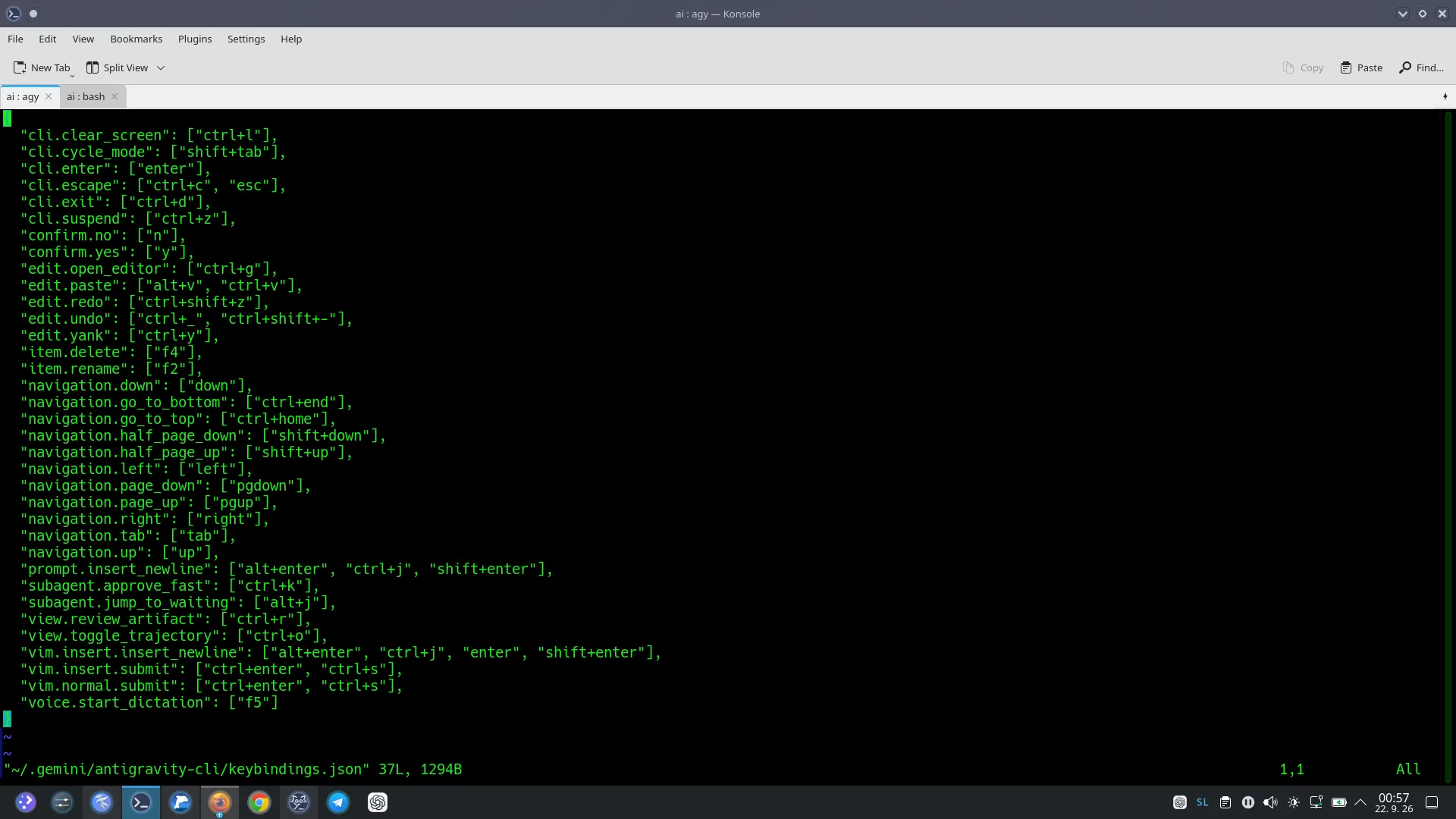
Section titled “Customizing Keybindings (/keybindings)”Running /keybindings tells Antigravity to open your personal keymap file (~/.gemini/antigravity-cli/keybindings.json) inside your system’s default command-line editor:
[!CAUTION]
The Classic “Vim Trap” Heads-Up! 🚨
Section titled “The Classic “Vim Trap” Heads-Up! 🚨”If your system default editor happens to be vi / vim and you have never used it before, running
/keybindingsmight feel like you’ve been locked in a room with no door!How to exit safely:
- Press
Esckey once or twice (ensures you are in Normal mode).- Type
:q!and pressEnter(quits immediately without saving any accidental keystrokes).- Or type
:wqand pressEnter(saves your keybinding changes and returns toagy).
Prefer Nano or VS Code? Set Your Default Editor
Section titled “Prefer Nano or VS Code? Set Your Default Editor”On Linux Debian systems, the default editor can be configured globally or per-shell. If you prefer the user-friendly Nano editor:
# Set Nano as default for your current user in ~/.bashrc:echo 'export EDITOR=nano' >> ~/.bashrcecho 'export VISUAL=nano' >> ~/.bashrcsource ~/.bashrcOr switch the Debian system-wide default using update-alternatives:
sudo update-alternatives --config editor# Select /bin/nano from the numbered listOnce set, running /keybindings in agy will comfortably open in Nano with familiar shortcut keys shown directly at the bottom (Ctrl+O to save, Ctrl+X to exit).